I always struggle to add photos and text so that the photos appear relevant to the text or a photo has an appropriate caption.
With the new format on lotuselan.net I can add a photo, but it appears as a file code, I cannot view it in my post until after it is sent which is too late to add text. I notice that many of you post excellent photos with appropriate captions or in the correct position within your text. How do you do this?
I post and take photos using an I pad.
I am an analog man in a digital system where nothing makes sense to me. I find this both frustrating and embarrassing.
I am reminded of a member of our group who when he signed off would say “I know I can’t spell” and would then list all the things he could do. I know I struggle with computer tech, can someone help in really simple terms.
@RichardHawkins Just FYI: If I click the link in your post I land on a site in Israël, is that right ór a typo? Very sorry, I cannot help you with your actual problem, I´m only working with MS Windows, “inherited” from my old companies…
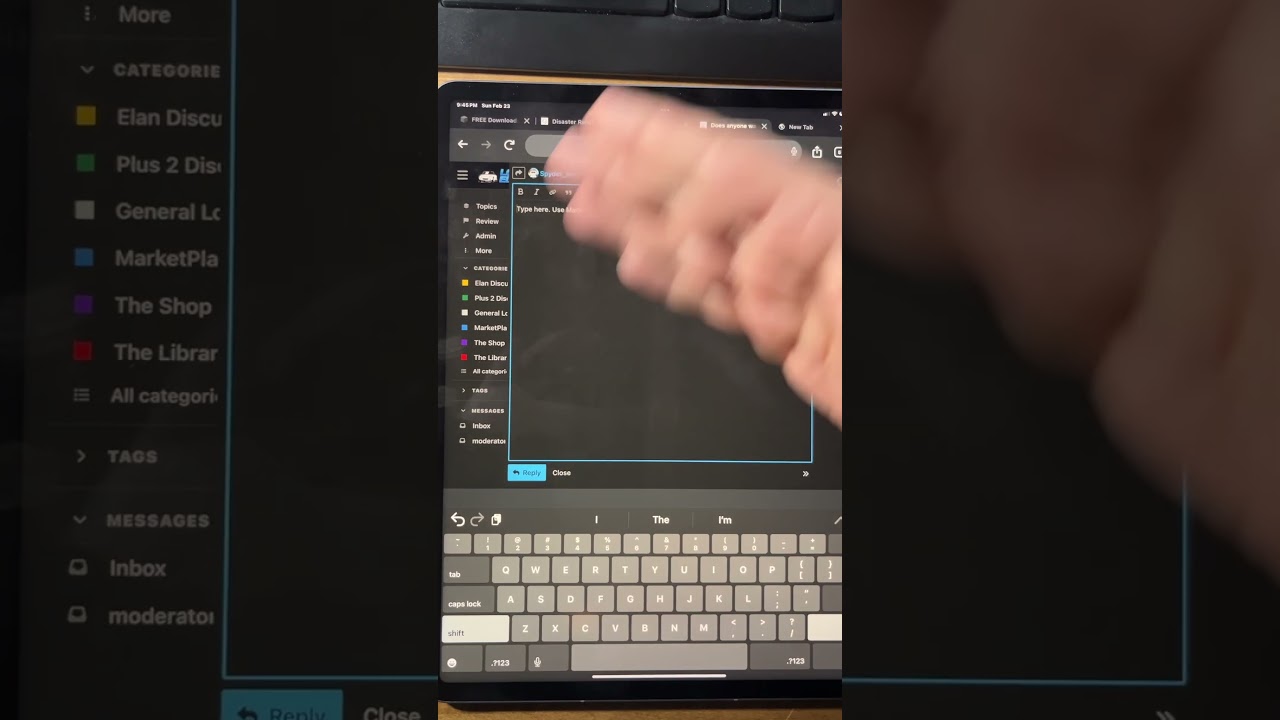
It sounds as if you have the preview disabled. At the bottom right of the editing area there is a double chevron icon. Clicking this opens or closes the preview area to the right of the editing window.
The preview shows the post as it will appear complete with any photos.
(Note: You can find the function of almost every icon on the site by hovering the mouse pointer over it to bring up a helpful hint.)
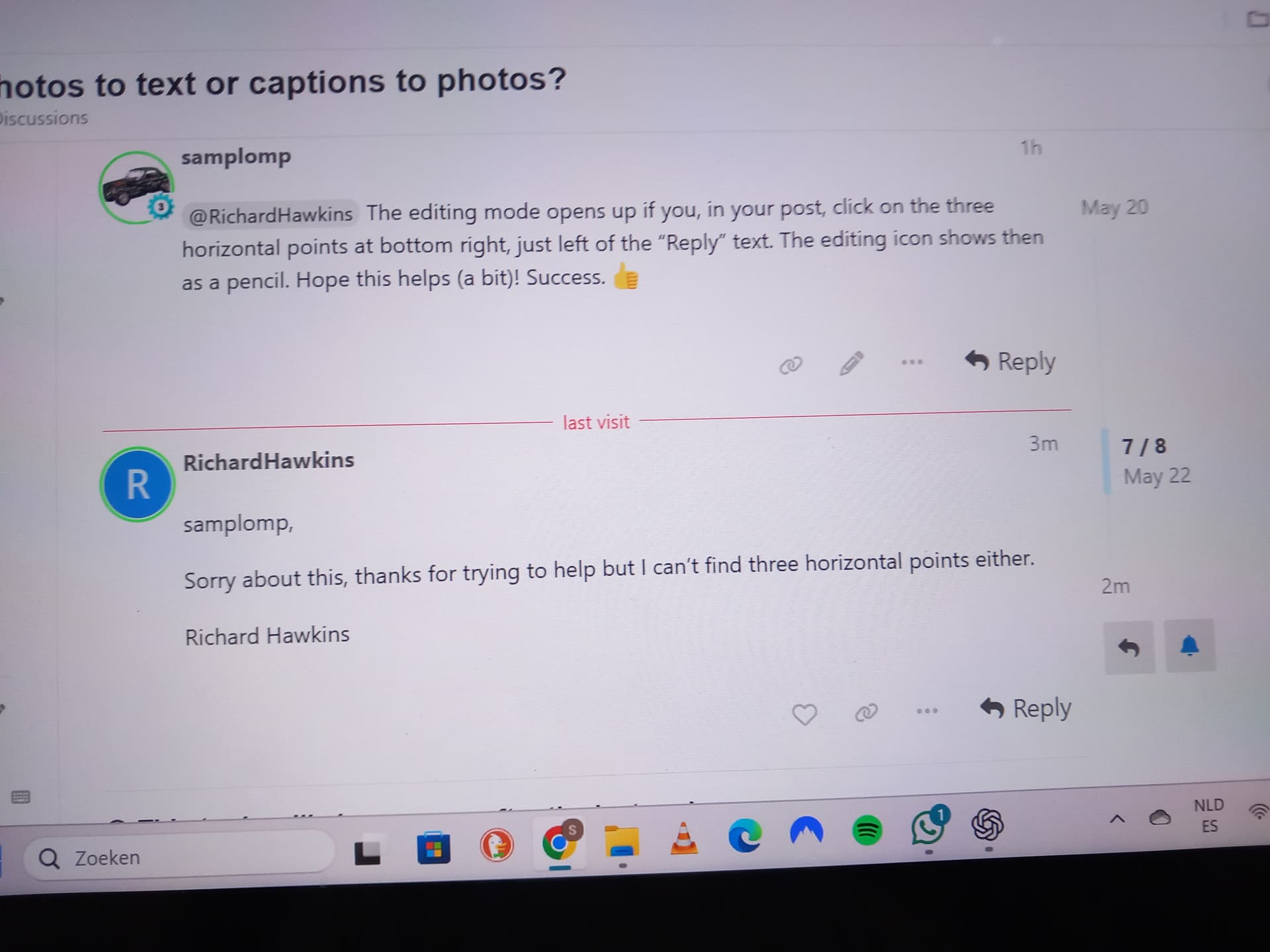
@RichardHawkins The editing mode opens up if you, in your post, click on the three horizontal points at bottom right, just left of the “Reply” text. The editing icon shows then as a pencil. Hope this helps (a bit)! Success.
Having sent the post the three points appear, this is not much use after the post has been sent, also clicking on the three points does not open and edit function. I am trying to do this using an iPad, could this be part of my difficulty?
Thanks for the help again, but the demonstration was far too fast for me to follow, I did manage to see the icon that you referred to in a previous post but am unable to find that double chevron or the three periods on my screen. This is like being hard of hearing, after asking someone to repeat what they said and still not understanding at the third retelling one tends to give up.
When you were composing your reply you saw the text appearing in a box with a blue stripe across the top. That’s all I meant by the ‘editing area’.
If preview had been ON then you would also have seen exactly the same text appearing in the area to the right of the box.
(As such, the preview isn’t very useful when posting simple text, but does display all text formatting such as bold, italic etc. which don’t show as such in the editing area. And going back to your original question, it will also display photos, videos etc. as they will eventually appear in the post.)
Clicking the double chevron at the bottom right simply toggles preview on and off. (It points to the right >> when preview is off, and to the left << when preview is on.)
Thanks again for trying to help, but there is no double chevron in the bottom right hand corner of my screen. I see the double chevron on the clip from Jeff, but don’t know how to find it on my screen.
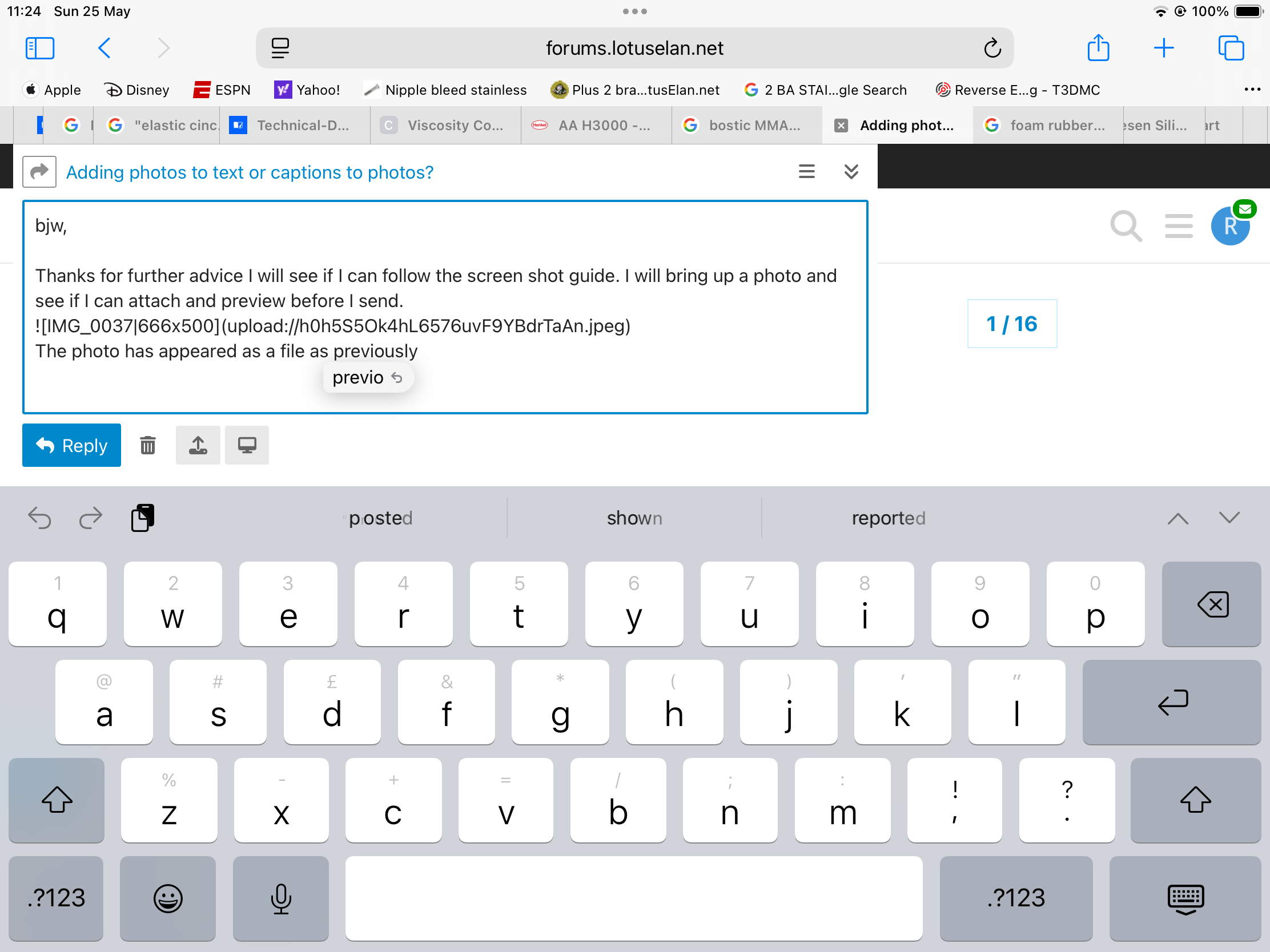
I think I have taken a screen shot, which again appears as a file. Hopefully when I send this reply you will be able to see that the double chevron and three points are missing from my screen.
Thanks again, I have just looked at my reply and cannot see the three points or double chevron. Hopefully this will enable someone to tell me what I am doing wrong.
I’m a keyboard/mouse person, but against my better judgement I struggled to use the site on an Android phone and I didn’t get the double chevron either…
That doesn’t help but does show the site works differently on different platforms, or maybe versions of them. I don’t know why Jeff’s iPad shows the chevron and yours doesn’t - perhaps it’s an iOS version thing?
I also tried it on an old Chromebook only to be informed that this site would no longer work on that browser after July…
Thanks for all the help, I will be visiting my daughter son in law and two grandsons in about two weeks time. They live about 100 miles away. I shall park this problem until then when I can get some help whilst being watched to see what I am doing incorrectly.